

11 Best AI for Beginners:
Strategies That Actually Work
(Ranked by Results)
An honest, research-backed ranking of the AI tools that consistently deliver for newcomers — with real data, real limitations, and real use cases. No hype.
What’s inside
- Why this ranking exists
- How we ranked these tools
- The productivity data, honestly
- 1. ChatGPT — Best all-rounder
- 2. Claude — Best for writing depth
- 3. Google Gemini — Best for Google users
- 4. Perplexity AI — Best for research
- 5. NotebookLM — Best for studying
- 6. Grammarly — Best for writing polish
- 7. Canva AI — Best for visual output
- 8. Gamma — Best for presentations
- 9. Microsoft Copilot — Best for Office users
- 10. Otter.ai — Best for meetings
- 11. Notion AI — Best for organizing everything
- Strategies that actually work
- Common beginner mistakes
- Starter stacks by goal
- Final word
There’s a gap between the AI tools people talk about and the ones people actually stick with. This post is about the second kind.
If you’ve tried an AI tool and felt like you were doing something wrong — like everyone else was getting magic results and you were just… prompting a chatbot into producing mediocre summaries — you’re not alone. ManpowerGroup’s 2026 Global Talent Barometer found that while 45% of workers now use AI regularly, confidence in using it actually dropped 18% in the same period. People are adopting tools faster than they’re learning to use them well. That gap is what this guide addresses.
This is not a list of every AI tool that exists. It’s a ranked selection of the eleven that consistently produce results for beginners specifically — people who are new to AI, don’t want to read technical documentation, and need something useful on day one. The ranking is based on ease of entry, quality of output for common tasks, free-tier generosity, and honest third-party benchmarks where those exist.
One thing worth saying upfront: there’s no perfect universal AI tool. The question “which AI is best?” doesn’t have one answer, because the best tool depends entirely on what you’re trying to do. This guide gives you a clear map.
How This Ranking Works
Each tool was evaluated on five criteria — all weighted toward the beginner experience:
Time to first value
How quickly can someone get something genuinely useful within the first 10 minutes?
Free tier quality
How much of the real functionality is available without paying?
Output quality for common tasks
Writing, research, summarizing, planning — does it actually do these well?
Learning curve
Can a non-technical person figure it out without help?
Quick reference — all 11 at a glance
The Productivity Data — Honestly
Before getting into individual tools, it’s worth setting realistic expectations. The numbers floating around about AI productivity are all over the place, and some are genuinely misleading. Here’s what the most credible research actually shows.
The Federal Reserve measured an average of 5.4% of work hours saved — roughly 2.2 hours per week. That’s real but modest. The gap between that and the self-reported figures you see in press releases (often 40% productivity gains or more) is enormous, and it’s worth understanding why.
Most of the larger gains come from two groups: power users who’ve invested time learning how to prompt effectively, and people doing tasks where AI is genuinely transformative — like drafting content, answering routine support questions, or summarizing long documents. A customer service rep can handle 13.8% more inquiries per hour. A business professional writes 59% more documents per hour. A programmer codes 126% more projects per week. These gains are real — but they’re task-specific, not universal.
The honest beginner’s expectation: start with two or three tools, applied to two or three specific recurring tasks. If you save 30 minutes a day on something that used to take you an hour, that’s genuinely valuable — and compounding. Don’t measure yourself against someone else’s best-case scenario in their strongest domain.
That applies far beyond developers. Almost right, requiring verification — that’s the working model for any AI tool right now. Keep it in mind as you go through this list.
ChatGPT by OpenAI — The default starting point
ChatGPT occupies an unusual position in this list: it’s the right starting tool for most beginners, but not necessarily the best tool once you develop a more specific need. Think of it as a highly capable generalist — good enough at almost everything, exceptional at the things most people actually want when they first try AI.
The free tier is more generous than it used to be. You get access to GPT-4o, file uploads, image generation (via DALL-E integration), and web browsing, all without paying. That’s a meaningful package. The main limitation is that heavy users hit rate limits during peak hours, and the deep research feature requires a paid subscription.
Where ChatGPT genuinely excels for beginners: explaining complex topics in plain language, generating first drafts of emails and documents, brainstorming when you’re stuck, and summarizing content. It’s very good at “explain this to me like I’m new to it,” which is exactly where most beginners spend their first hours.
One honest note: some reviewers who use multiple AI tools have observed that ChatGPT’s default outputs have shifted toward shorter, more bullet-heavy responses in 2025–2026. The depth that once made it the clear leader is still there — but increasingly requires more deliberate prompting to unlock.
- Broadest feature set of any AI tool (voice, vision, image gen, Canvas, code)
- Best-in-class free tier — GPT-4o at no cost
- Enormous user community, tutorials, and prompt libraries
- Intuitive interface — most non-technical people are comfortable within minutes
- Handles multi-step tasks and conversational follow-ups naturally
- Rate limits on free tier during peak hours
- Default responses can be surface-level without detailed prompts
- Can confidently produce incorrect information (“hallucinate”)
- Doesn’t cite sources by default — you have to ask
Claude by Anthropic — The thoughtful one
Claude tends to be the tool that people discover after ChatGPT and then can’t stop using for anything serious. The difference shows up most clearly in two situations: when you’re writing something that actually matters, and when you’re working with long documents.
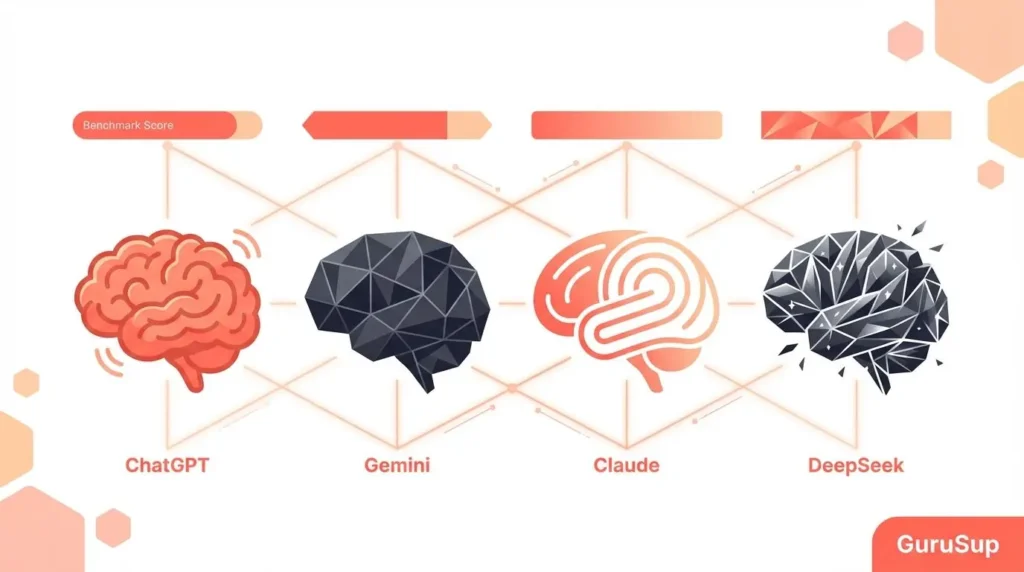
In independent testing comparing writing quality blind across multiple AI tools, Claude consistently produces output that reads as more thoughtful and less generic. One comparative test across 8 writing prompts found Claude winning 4 rounds versus ChatGPT’s 1. That’s a directional signal rather than a definitive verdict, but it matches the consistent preference most regular users report. On coding benchmarks, Claude has scored 93.7% accuracy in some independent tests, compared to ChatGPT at 90.2%.
For beginners, Claude’s most immediately useful quality is that it gives you what you ask for without adding unnecessary caveats, filler, or “as an AI language model” hedging. The responses feel more like getting help from someone knowledgeable, and less like talking to a liability-aware corporate bot. That changes how useful it is in practice.
The free tier is meaningful — you can do real work with it — but if you hit daily limits mid-project, it’s frustrating. The Projects feature (available with Pro) lets you build persistent context, essentially feeding Claude your SOPs, writing style, and background once rather than re-explaining it each conversation. That’s a significant upgrade for anyone doing recurring work.
- Writing quality that feels human and nuanced
- 200,000-token context window — handles very long documents
- Follows complex multi-part instructions reliably
- Less prone to adding unnecessary fluff to responses
- Projects feature creates persistent, personalized context
- Free tier hits limits faster than ChatGPT’s
- Smaller feature ecosystem — no built-in image generation
- Fewer third-party integrations
- Less community content and prompt templates available
Google Gemini by Google — Deep ecosystem integration
Gemini’s single biggest advantage for beginners is one that’s easy to underestimate: it actually reads your real stuff. When Gemini is embedded in Gmail, it uses your actual emails. When it’s in Google Docs, it uses your actual document. When it’s in Sheets, it understands your actual data. This sounds simple, but it changes the nature of what AI assistance means.
If you already use Google’s workspace — and most people do, in some form — Gemini is the fastest path from zero to genuinely personalized AI help. A 2025 case study by a global consulting firm cited in industry reports showed Gemini cutting research prep time by 60% when processing PDF reports, scanned tables, and email archives together for client preparation.
As a standalone chat tool, the raw model quality is competitive with the top tier. Where it sometimes lags behind Claude is in long-form document work requiring sustained complex reasoning. But for most beginners, the practical advantage of integration will outweigh that.
- Native integration with Gmail, Docs, Sheets, Drive
- Strong multimodal capabilities — text, images, files
- Free student plan (Advanced tier) for verified students
- Can cross-reference multiple source types simultaneously
- Best features require Google account and Workspace
- Full integration depth needs paid Advanced plan
- Slower with complex multi-step structured reasoning tasks
Perplexity AI The search engine that actually answers
Perplexity solves a specific problem that ChatGPT and Claude don’t: it tells you where its information comes from, and it’s looking at the live web, not training data from a year ago. For anyone doing research, fact-checking, or trying to understand fast-moving topics, this matters a great deal.
The fundamental experience is: ask a question, get a direct answer, with numbered citations linking to actual sources you can verify. It’s genuinely different from regular search — you’re not wading through ten links hoping one of them answers your question. You get the answer, then you can check it.
Where Perplexity struggles: it’s not a creative writing tool. The outputs are functional and accurate but not particularly inspired. Don’t use it to draft a cover letter or brainstorm business ideas. Use it when accuracy and source verification matter more than style. Researchers, journalists, analysts, and students writing papers with citations will find it indispensable.
- Native source citation — every claim links to a real source
- Real-time web access — not limited to training cutoff
- Free student plan is genuinely comprehensive
- Sonar infrastructure makes it significantly faster than competitors
- Not for creative or long-form writing tasks
- Free tier limits daily queries
- Less capable for complex reasoning or nuanced analysis
NotebookLM by Google — Your own personal AI librarian
NotebookLM does something none of the other tools on this list do: it refuses to answer from anywhere except what you’ve given it. Upload your PDFs, lecture notes, research papers, or documents — and it only talks about those. It won’t fabricate a statistic. If it can’t find the answer in your materials, it tells you that.
That constraint is actually what makes it exceptional for studying. Graduate students, researchers, and anyone who needs to synthesize a large body of documents without introducing outside information will find it genuinely transformative. One of the clearest practical examples: upload ten research papers and ask “What are the main points of disagreement across these sources?” — and receive a synthesized answer with citations pointing to exact documents. What might take a day of manual cross-referencing takes minutes.
The Audio Overview feature is easy to underestimate. It converts your uploaded materials into a realistic podcast-style conversation between two synthesized hosts discussing your documents. Unusual? Yes. Useful for auditory learners revising during a commute? Genuinely, yes.
NotebookLM added slide generation in late 2025, and — unlike tools like Gamma — the slides it generates are grounded in your actual source material with no risk of fabricated data points. That addresses one of the most uncomfortable risks in AI-generated presentations.
- Completely free with no meaningful usage caps
- Zero hallucination within uploaded sources
- Audio Overview feature for passive review
- Source citations with exact document references
- Multilingual performance backed by Google’s infrastructure
- Only knows what you’ve uploaded — can’t browse the internet
- Not suitable for open-ended creative tasks
- PPTX export still rolling out (was PDF-first as of early 2026)
Grammarly The invisible editor that follows you everywhere
Grammarly gets placed on these lists as a footnote, but it probably deserves more credit than that. The reason: nearly every beginner underestimates how much of their AI need is actually about writing better, not generating something from scratch. Grammarly addresses that need where you already are — in your email, your documents, your browser — without requiring any behavioral change.
In 2026, it’s grown beyond grammar checking into tone adjustment, audience-specific rewrites, and AI-assisted drafting. If you write professional emails and want them to sound confident rather than uncertain, if you’re an international professional writing in English as a second language, or if you’re an academic who needs to adjust register between assignments — Grammarly’s ambient presence is very effective.
The key differentiator from the other tools here: it’s not something you open, it’s something that’s always on. That changes the behavior pattern from “go use an AI tool” to “keep writing, but better.”
- Works across nearly every writing environment
- Tone and audience adjustments, not just grammar fixes
- Genuinely helps non-native English speakers write professionally
- Explains why each suggestion is being made — you actually learn
- Can over-homogenize distinctive writing voices
- Advanced AI features require Pro plan
- Plagiarism detection behind paywall
Canva AI Design made accessible — genuinely
Canva’s AI tools have matured to the point where a beginner with no design experience can produce something that looks professional within minutes. Magic Design takes a text prompt and generates layout options. Magic Write drafts copy. The background remover handles image editing without Photoshop. These aren’t demo features — they work consistently enough to be reliably useful.
For many beginners, Canva AI solves a problem the other tools can’t: turning ideas into something visual. ChatGPT and Claude can write beautifully, but they don’t produce a slide deck you can present to your boss tomorrow morning. Canva can. That makes it genuinely complementary to the conversational AI tools rather than competing with them.
One pricing note worth being clear about: Canva raised its Pro price from $12.99 to $15/month in 2026. The free plan still covers a great deal, but some of the most useful AI features — bulk content creation, Brand Kit, Magic Resize — require Pro.
- Genuinely accessible for people with no design background
- AI generates complete layouts — not just suggestions
- Free education plan is comprehensive
- Export to most formats including video
- Pro price increased to $15/month in 2026
- AI doesn’t understand curriculum or content requirements — you write the content
- Advanced brand customization limited to Pro
Gamma Slide decks that actually look designed
Gamma hit 70 million users and $100 million ARR as of late 2025, which tells you something about how much time people spend wrestling with PowerPoint. The pitch is simple: paste in a document or topic, Gamma builds a complete slide deck with logical structure, appropriate visuals, and clean layout.
Its particular strength is structural reasoning — it doesn’t just generate slides, it organizes content into a sensible information hierarchy, which is where most amateur slide decks fail. For internal presentations, pitch decks, and proposals, the result is often good enough to present without significant editing.
The honest caveat: PowerPoint export is problematic. Charts shift, fonts substitute, animations disappear. If your audience will be opening a PPTX file, expect to fix it. If you can share via link (which Gamma supports natively) or present directly from the platform, the export problem doesn’t arise. Also — like all AI-generated content — any slides containing specific numbers require manual verification before presenting.
- Generates complete, well-structured decks from a prompt
- Better visual layout than DIY alternatives
- Strong multilingual support
- $10/month Pro tier is reasonable
- PPT export has known fidelity issues
- AI can introduce incorrect data — always verify numbers
- Free tier credits are limited
Microsoft Copilot AI baked into the tools most offices already use
If your organization runs on Microsoft 365, Copilot is potentially the most practically valuable AI investment available — because it works inside the applications where your work already lives. It summarizes long email threads in Outlook, drafts documents in Word, explains formulas in Excel, and generates meeting summaries from Teams calls.
For individuals, the free tier at copilot.microsoft.com gives you capable AI assistance using Microsoft’s GPT-4 integration. For enterprise users with the full Microsoft 365 Copilot subscription, the organizational data integration is the real value proposition.
The standalone chat experience competes credibly with ChatGPT, and the image generation (via DALL-E integration) is included. The main reason it ranks ninth rather than higher is that the deepest value requires an organizational subscription that many beginners won’t have access to as individuals.
- Native integration into Word, Excel, PowerPoint, Teams, Outlook
- Free standalone chat at copilot.microsoft.com
- Turns meeting transcripts into action item summaries
- Familiar interface — no new learning curve if you use Office
- Full organizational value requires $30/user/month Business plan
- Inconsistent quality across different Office applications
- Less flexible than standalone ChatGPT or Claude for custom workflows
Otter.ai The meeting that doesn’t forget anything
Otter.ai solves one of the most universal professional problems: you can’t take good notes and be fully present in a meeting at the same time. The tool joins your Zoom, Teams, or Google Meet call, transcribes what’s said in real time, and then produces a summary with action items afterward.
It’s not glamorous, but it’s consistently useful. The people who benefit most are those who have many meetings per week — the tool pays for itself in recovered focus and eliminated “what did we decide?” email threads. Knowledge workers who attend five or more meetings weekly frequently report it as one of the highest-ROI AI tools they use, precisely because the output is immediately actionable.
- Automatic transcription with speaker identification
- Integrates with Zoom, Teams, Google Meet natively
- AI-generated action item summaries
- Searchable transcript archive
- Free tier is limited to 300 monthly transcription minutes
- Transcription accuracy varies with accents and background noise
- Some organizations restrict third-party call recording
Notion AI When your workspace thinks with you
Notion AI’s distinctiveness isn’t in the quality of its underlying model — it’s in the context it operates within. Because it runs inside Notion, it understands your entire workspace: your project plans, wikis, meeting notes, and team documentation. Ask it to summarize a project and it draws on everything your team has written about that project, not just the current document.
As a standalone writing tool, it’s not exceptional. Against ChatGPT or Claude for pure writing tasks, it lags. But as an AI layer on top of an organized team knowledge base, very few tools approach it. For freelancers and small teams who’ve already invested in organizing their work in Notion, it’s a natural extension. For beginners starting fresh with no existing system, NotebookLM is likely more immediately useful.
- AI understands your entire existing workspace
- Generates summaries, action items, and drafts from project context
- Excellent for teams sharing a knowledge base
- Creates flashcards, task lists, and outlines from notes
- Value scales with how well your Notion workspace is organized
- Weaker as a standalone writing tool vs. Claude or ChatGPT
- AI features add cost on top of Notion’s base pricing
Strategies That Actually Work for Beginners
Having access to the right tools is only part of the equation. The other part is using them in a way that produces consistent results rather than occasional good luck.
1. Start with one tool and one task
The most common beginner mistake is signing up for five tools in a week and using none of them consistently. Pick the single tool that addresses your most frequent pain point and spend two weeks with it. Depth of use produces results faster than breadth of access.
2. Give AI context, not just commands
The difference between a mediocre AI output and a good one is almost always the quality of context you provide. “Write an email about our meeting” produces something generic. “Write a follow-up email to a client who expressed interest in our logistics software but had concerns about implementation time — our projects typically take 6–8 weeks, and we have a dedicated onboarding team” produces something usable. The more specific your situation, the better the output.
3. Treat AI output as a first draft, not a final answer
This is perhaps the most important reframe. AI tools produce high-quality drafts very quickly. They do not replace your judgment, your knowledge of your specific context, or your responsibility for accuracy. The fastest path to consistent results is: AI generates the structure and first pass, you refine, verify, and personalize. This is true for writing, research, slide content, and especially anything with specific numbers or factual claims.
4. Use the right tool for the right job
This sounds obvious, but it’s where most beginners lose time. A reasonable mental model:
- Need to think through something or write something? → ChatGPT or Claude
- Need to look something up accurately with sources? → Perplexity
- Need to work with your own documents? → NotebookLM
- Need to polish your writing? → Grammarly
- Need to produce visual output? → Canva AI or Gamma
- Need to capture what happened in a meeting? → Otter.ai
5. Build a prompt you reuse
After two or three weeks of using an AI tool, you’ll notice patterns in what you ask for. Start saving your best prompts. The people who get consistently high-quality output from AI tools usually have 5–10 prompts they’ve refined over time for their recurring tasks. You’re not starting from zero every time — you’re iterating a template that already works.
Mistakes That Stall Most Beginners
These come up constantly, and none of them require any technical sophistication to avoid.
Expecting perfection on the first try
AI tools work iteratively. A first output that’s 70% of what you wanted should prompt you to refine your request, not to conclude the tool doesn’t work. “That’s close — now make the tone more formal and cut the third paragraph” is how most experienced users actually work.
Treating AI as a search engine
ChatGPT and Claude are trained on data with a knowledge cutoff, and they will confidently produce plausible-sounding wrong answers for current events and specific recent facts. If accuracy and currency matter, use Perplexity or verify against a primary source. This is the single most important safety habit for beginners to develop.
Using five tools when two would do
Tool overload is real. The cognitive cost of managing multiple subscriptions, contexts, and interfaces eats into the time AI is supposed to save you. Start with two tools maximum. Add a third only when you have a clear need that your existing two don’t address.
Skipping the free tier evaluation
All eleven tools on this list offer a meaningful free tier or trial. Use them. The tool that gets recommended most frequently isn’t necessarily the tool that works best for your specific workflow. Spend two hours with the free version before committing to a paid subscription.
Starter Stacks by Goal
Rather than a single universal recommendation, here are purpose-specific stacks — minimal combinations that address the most common beginner goals without creating tool overload.
| Your goal | Primary tool | Add this second | Optional third | Monthly cost (free tier only) |
|---|---|---|---|---|
| General productivity | ChatGPT | Grammarly | Perplexity | $0 |
| Writing & content | Claude | Grammarly | Canva AI | $0 |
| Studying / academic | NotebookLM | Perplexity | ChatGPT (free) | $0 |
| Research & analysis | Perplexity | NotebookLM | Claude | $0 |
| Professional presentations | Gamma | ChatGPT (structure) | Canva AI (visuals) | $0 |
| Meeting-heavy roles | Otter.ai | ChatGPT or Copilot | Notion AI (if applicable) | $0–limited |
| Google Workspace users | Gemini | NotebookLM | Grammarly | $0 |
| Microsoft Office users | Copilot | ChatGPT (backup) | Grammarly | $0 |
A Final Word
The AI landscape in 2026 is genuinely useful in ways it wasn’t two years ago — but it’s also more confusing, more crowded, and more prone to overpromising than ever. The gap that matters most isn’t between one AI tool and another. It’s between people who’ve figured out where AI fits into their actual daily workflow and people who haven’t.
That second group — the 56% of workers who received no AI training, the 45% using tools they’re not confident in — isn’t failing because they’re behind. They’re failing because the marketing around AI sets absurd expectations, and the onboarding experience rarely helps beginners identify the specific tasks where AI genuinely saves time versus the tasks where it creates overhead.
The honest path forward: pick one tool from this list that addresses your biggest daily friction point. Use it for two weeks on that specific task. When you have a clear sense of its value, consider adding one more. Most people who develop a sustainable AI habit do so by solving one problem well, not by exploring everything at once.
The tools exist. The results are there. The gap between you and them is mostly just practice — and you can start that today for free.
More from AIEarnerHub
Deepen your AI knowledge with these related guides and resources.
AI Use Cases in Daily Life: The Only Framework That Actually Works
11 AI for Beginners HP Strategies That Actually Work
Free AI Tools for Productivity: The Complete Guide to Transforming Your Workflow
Best Free AI Tools Supercharging Productivity in 2026
Best AI Tools for Work & Study Beyond ChatGPT